7/7/2018: 新サーバへの移行に伴いメールサーバ名が以下のように変更になりました。設定をご確認の上ご変更下さい。
Incoming Server: mail.neutron-tech.com または mail.usa24.cc
IMAP Port: 993 or POP3 Port: 995
(mail.ご利用のドメイン)
Outgoing Server: mail.neutron-tech.com または mail.usa24.cc
SMTP Port: 465
(mail.ご利用のドメイン)
NOTE: Authentication is required for IMAP, POP3, and SMTP.
IMAP Port: 993 or POP3 Port: 995
(mail.ご利用のドメイン)
Outgoing Server: mail.neutron-tech.com または mail.usa24.cc
SMTP Port: 465
(mail.ご利用のドメイン)
NOTE: Authentication is required for IMAP, POP3, and SMTP.
以下設定変更例です。
Outlookをご利用の場合:こちらをご覧ください。(https://tmocsys.com/2020-0707_OutlookSettingChange.pdf)
Windows Live Mail をご利用の場合:
※ 文中、testmail@usa24.cc
になっている部分は、ご利用のメールアドレスに読み替えて下さい。
(Email username やパスワードは、変更の必要はありません。)
STEP1.Windows Live
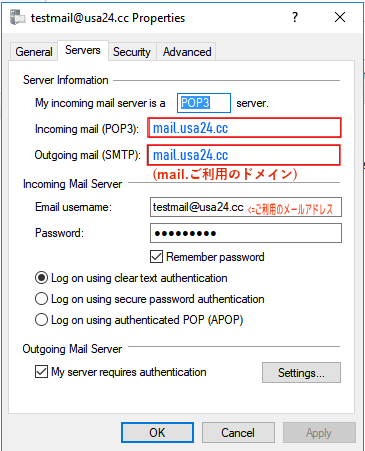
Mailを開き左側に出ている対象となるアカウントを右クリックしてプロパティを表示する。
STEP2.Servers のタブをクリックし、サーバ名の設定を確認し、mail.neutron-tech.com もしくは、mail.usa24.cc に変更する。
※ 既に mail.ご利用のドメイン (mail.neutron-tech.com もしくは、mail.usa24.cc) になっている場合は変更の必要はありません。
STEP2.Servers のタブをクリックし、サーバ名の設定を確認し、mail.neutron-tech.com もしくは、mail.usa24.cc に変更する。
※ 既に mail.ご利用のドメイン (mail.neutron-tech.com もしくは、mail.usa24.cc) になっている場合は変更の必要はありません。
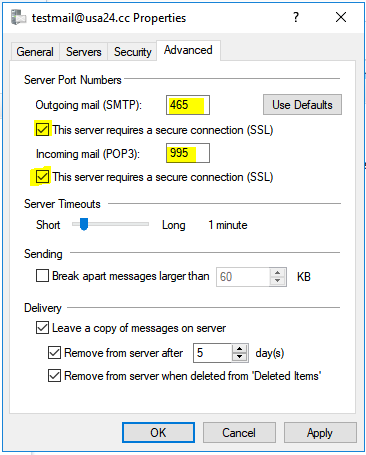
STEP3. Advanced のタブを開き SSL接続とポート番号を確認、変更する。
This server requires a secure connection (SSL)
の2か所のチェックを入れる、
送信メールサーバのポート番号を 465
受信メールサーバのポート番号を 995
に変更する。(すでにこの設定になっている場合は、変更の必要はありません。)
Webメールをご利用になる場合のURL: https://usa24.cc/webmail , https://usa24.cc/webmail">https://usa24.cc/webmail
※ ご質問のある方は、 tmocsys@tmocsys.com までEメールにて、もしくは310-652-3531までお電話にてご連絡下さい。
The information contained in this page intended for the users of T-MOCSYS internet service only.
It may contain certain privileged and confidential information, or information which is otherwise protected from disclosure.
If you are not our user, you must not copy,distribute or take any action in reliance on this information.